
SeaTryon’s default interface language is English. If your WordPress or WooCommerce store uses another language, you can translate the plugin’s customer-facing and administrative text with the free Loco Translate plugin. This guide demonstrates the complete workflow by translating the Virtual Try-On UI.
Video Tutorials:
Before you translate SeaTryon
- Install and activate SeaTryon on your WordPress website.
- Set your site’s language under Settings → General → Site Language.
- Use an administrator account that can install plugins and manage translations.
The example below uses Korean, but you can follow the same steps to translate SeaTryon into any language available in WordPress.
Step 1: Install and activate Loco Translate
- Sign in to your WordPress dashboard.
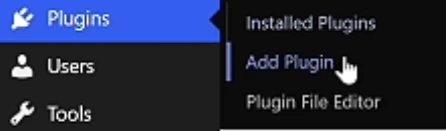
- Go to Plugins → Add Plugin.
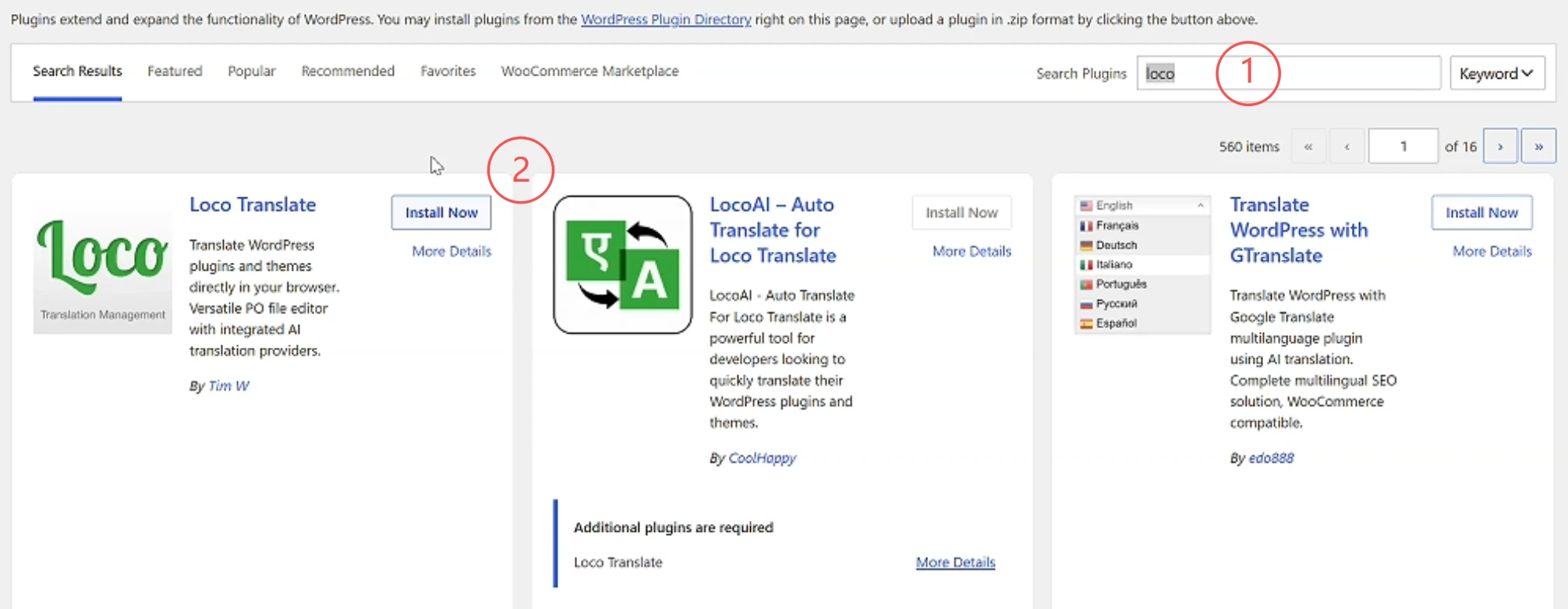
- Enter Loco Translate in the plugin search field.
- Find Loco Translate, click Install Now, and then click Activate.
Step 2: Open the SeaTryon translation project
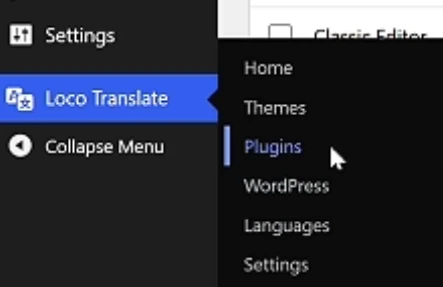
- Find Loco Translate in the WordPress sidebar.
- Select Plugins from its submenu.
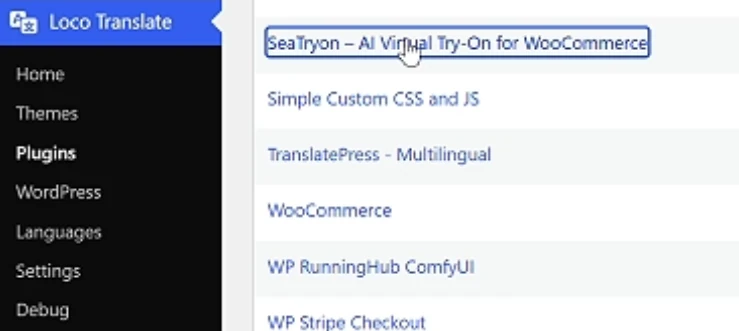
In the list of translatable plugins, locate and select SeaTryon – AI Virtual Try-On for WooCommerce.
Step 3: Create a new SeaTryon language
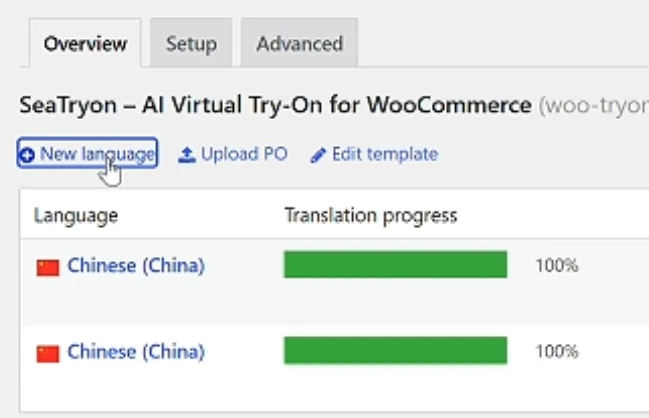
On the SeaTryon translation overview, click New language.
- Under Choose a language, select WordPress language.
- Select your target language. This example uses Korean.
- Keep the recommended Loco translation location selected. In the example, the PO file is stored under
languages/loco/plugins/. - Click Start translating.
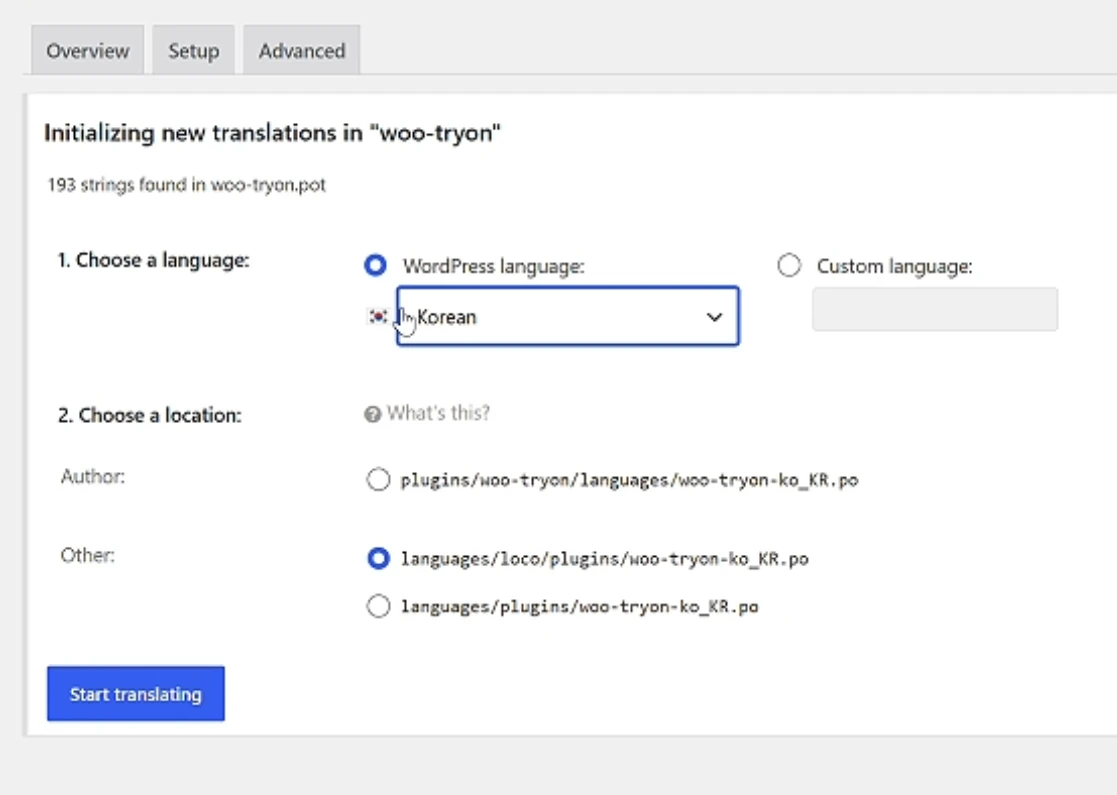
Why use the Loco location? A translation stored directly inside the SeaTryon plugin folder may be overwritten during a plugin update. Loco’s custom location keeps your translation separate from the plugin files.
Step 4: Translate the Virtual Try-On button
For this example, we will translate the storefront button label Virtual Try-On.
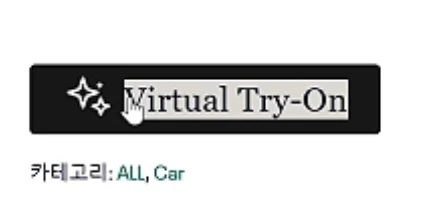
- Copy the exact source text from the storefront—in this case,
Virtual Try-On. - Paste it into the Loco Translate search field.
- The search may return several strings containing the same words. Select the exact Virtual Try-On source string from the results list.
- Enter the translated label in the target-language text box. For Korean, the example translation is 가상 피팅.
- Click Save. Loco Translate will save the PO translation and compile the MO file used by WordPress.
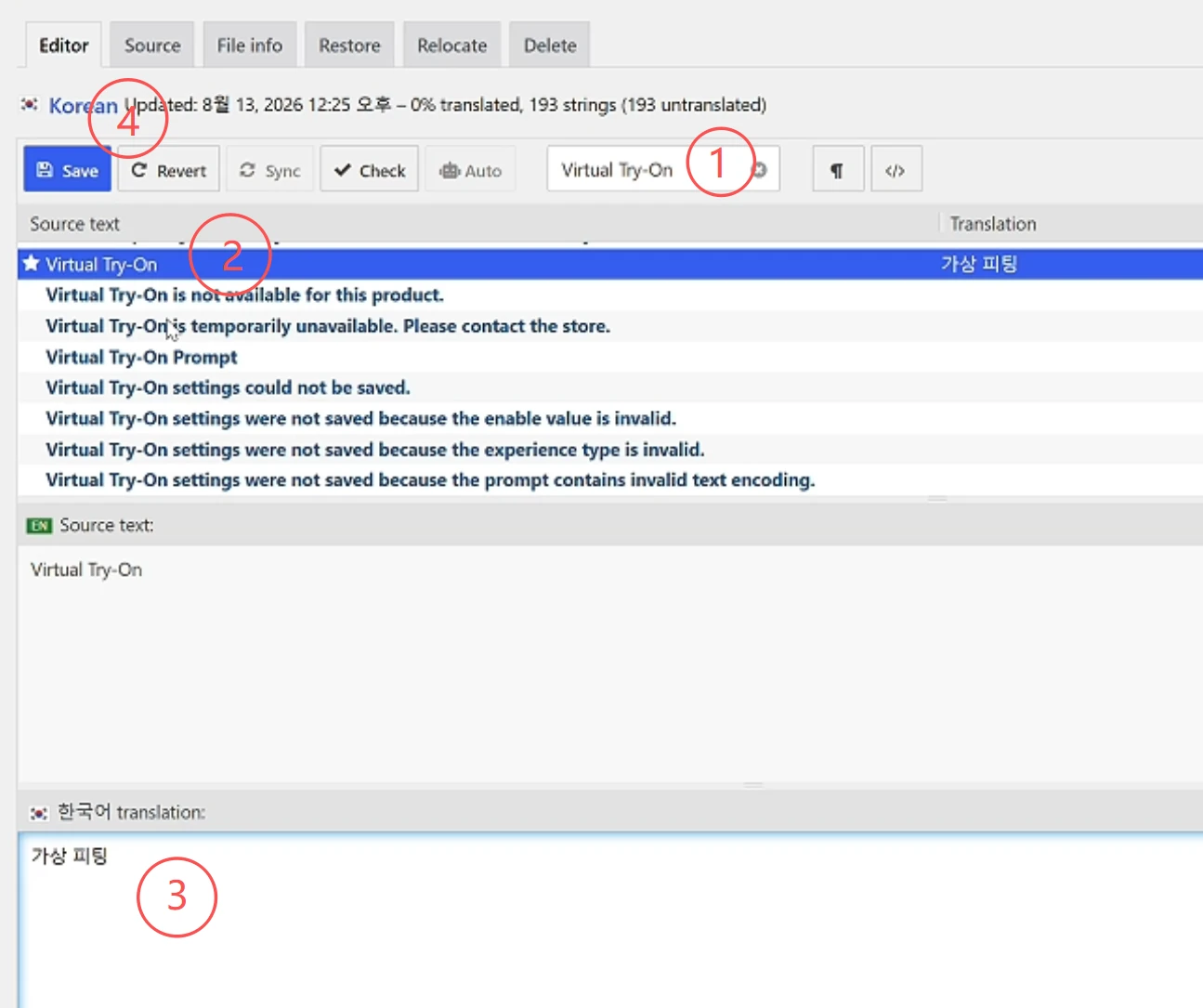
Step 5: Verify the SeaTryon translation
Open or refresh a WooCommerce product page where Virtual Try-On is enabled. The button label should now appear in the target language.

If the translation does not appear
- Confirm that Settings → General → Site Language matches the language created in Loco Translate.
- Make sure you selected the exact source string and clicked Save.
- Clear any WordPress cache, page cache, CDN cache, and browser cache, then reload the product page.
- After updating SeaTryon, open the language in Loco Translate and click Sync if new or changed strings are missing.
- Check that the translation file remains in Loco’s custom language directory rather than inside the SeaTryon plugin folder.