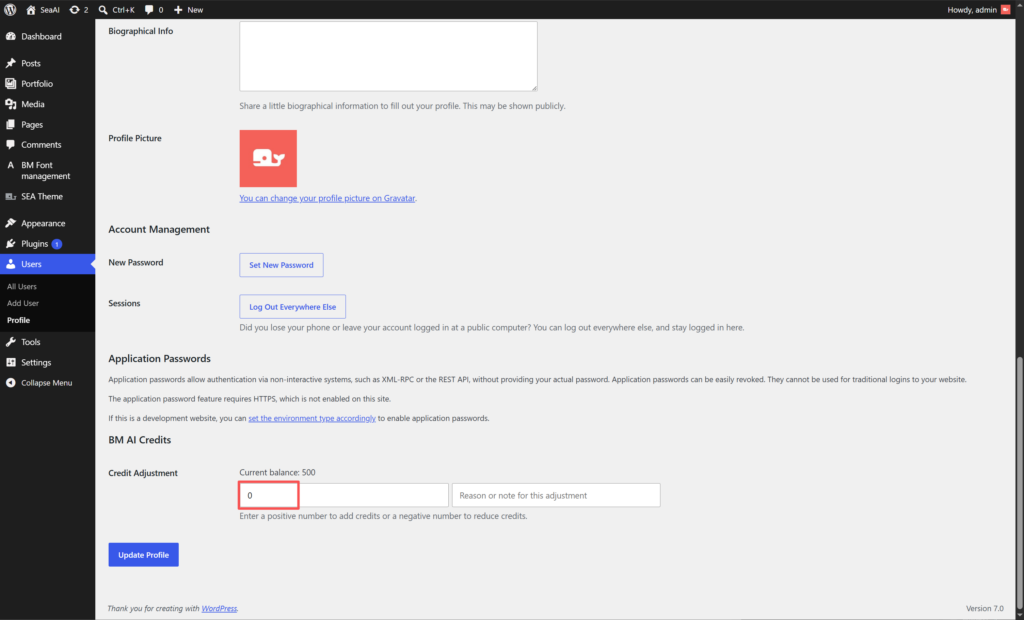
Open the User System Settings Page
In WordPress Admin, go to SEA Theme in the left sidebar, then click User System.
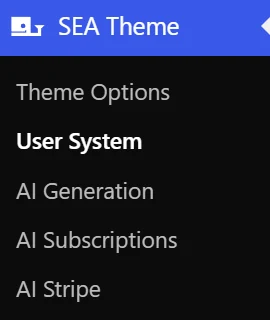
This opens the settings page for Magic Link login, account creation, user credits, and generated image history.
Magic Link Login Settings
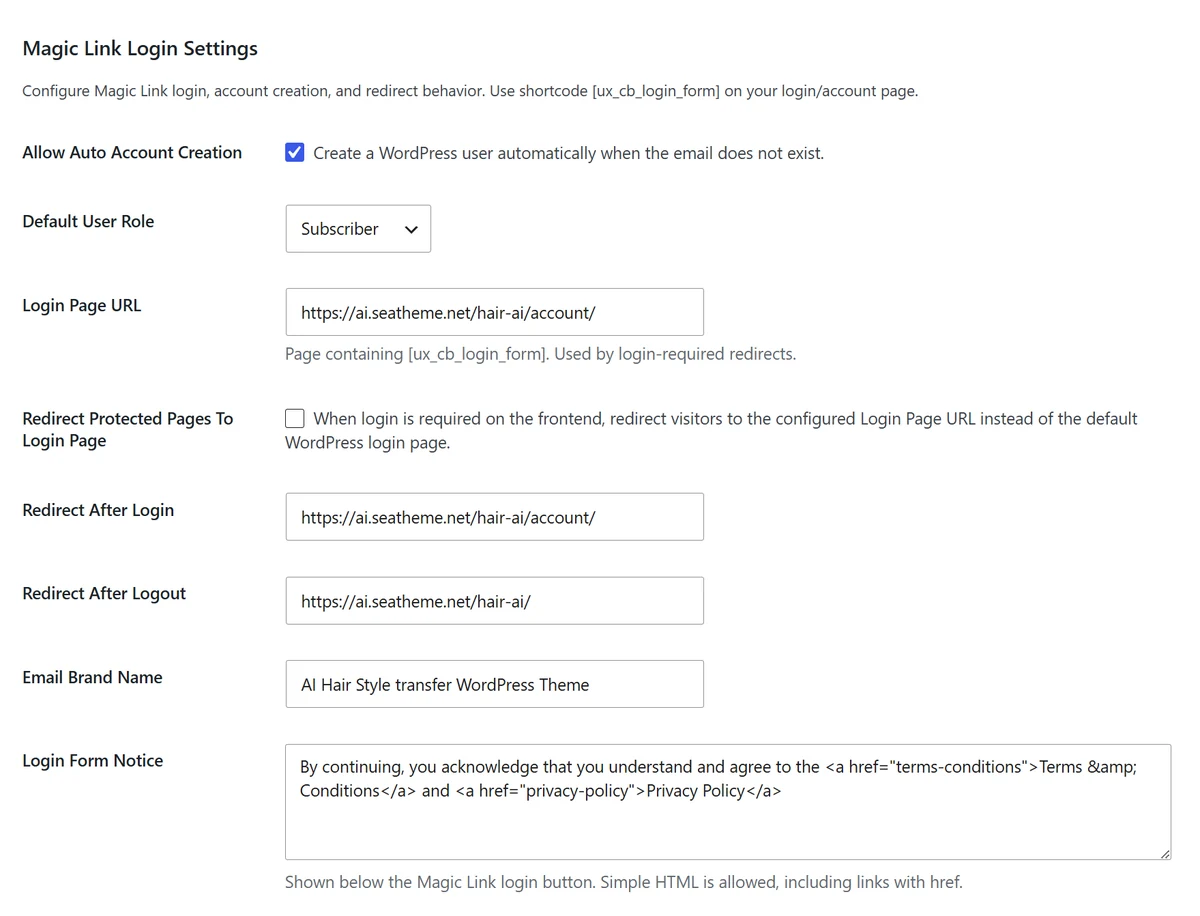
The Magic Link Login Settings section controls how users log in by email, how accounts are created, and where users are redirected before and after login.
To make the login work,please config the SMTP.
Login Form Shortcode
Use the shortcode below on your login or account page:
[ux_cb_login_form]This shortcode renders the Magic Link login form used by the user system.
Allow Auto Account Creation
Enable Allow Auto Account Creation to automatically create a WordPress user when the submitted email address does not already exist.
This is useful when you want new visitors to log in with a Magic Link without manually creating accounts first.

Default User Role
Select the WordPress role assigned to users created automatically through Magic Link login.
For most frontend users, Subscriber is the safest default role because it gives users a basic account without admin permissions.

Login Page URL
Enter the URL of the page that contains the [ux_cb_login_form] shortcode.
This URL is used when the site needs to send visitors to the Magic Link login page.

Redirect Protected Pages To Login Page
Enable this option when frontend pages that require login should redirect visitors to the configured Login Page URL.
When disabled, WordPress may use the default login page instead.

Redirect After Login
Enter the URL where users should be sent after a successful Magic Link login.
This is commonly an account page, dashboard page, or AI generation page.

Redirect After Logout
Enter the URL where users should be sent after logging out.
This is commonly the homepage, login page, or a public landing page.

Email Brand Name
Set the brand name shown in Magic Link login emails.
Use a clear site or product name so users can recognize where the login email came from.

Login Form Notice
Use Login Form Notice to display a short message below the Magic Link login button.
Simple HTML is allowed, including links with href. This is useful for terms, privacy policy, or consent notices.

Credit Settings
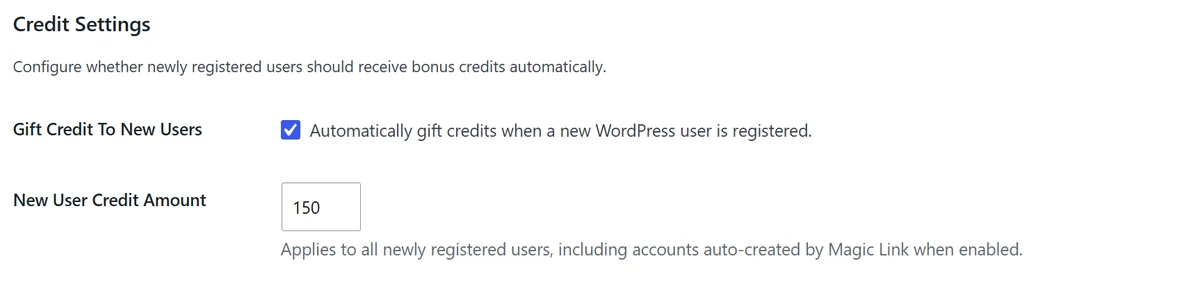
The Credit Settings section controls whether new users receive bonus credits automatically after registration.
Gift Credit To New Users
Enable Gift Credit To New Users to automatically add credits when a new WordPress user is registered.
This also applies to users auto-created by Magic Link when auto account creation is enabled.

New User Credit Amount
Enter the number of credits new users should receive automatically.
Use a value that lets users test the AI feature without giving away more credits than intended.

Generation History Settings
The Generation History Settings section controls the history page used by the [ux_cb_ai_history] shortcode and how old generated images are cleaned up.

History Images Per Page
Enter how many generated images should appear on each page of the history view.
This setting affects the page that uses the [ux_cb_ai_history] shortcode.

Keep Generated Images For
Enter the number of days generated images should be kept before cleanup.
Images older than this value will be permanently deleted from both history and the Media Library. Use 0 to keep generated images forever.

Recommended Setup
For a typical frontend AI site, enable auto account creation, keep the default role as Subscriber, set the login page URL to the page containing [ux_cb_login_form], and configure a reasonable new-user credit amount.
After saving the settings, test the full flow with a new email address: request a Magic Link, log in, confirm the redirect, and check that the expected credits are added.
Edit User Credits
Navigate to Users in your WordPress dashboard. Click the username of the user you want to edit.
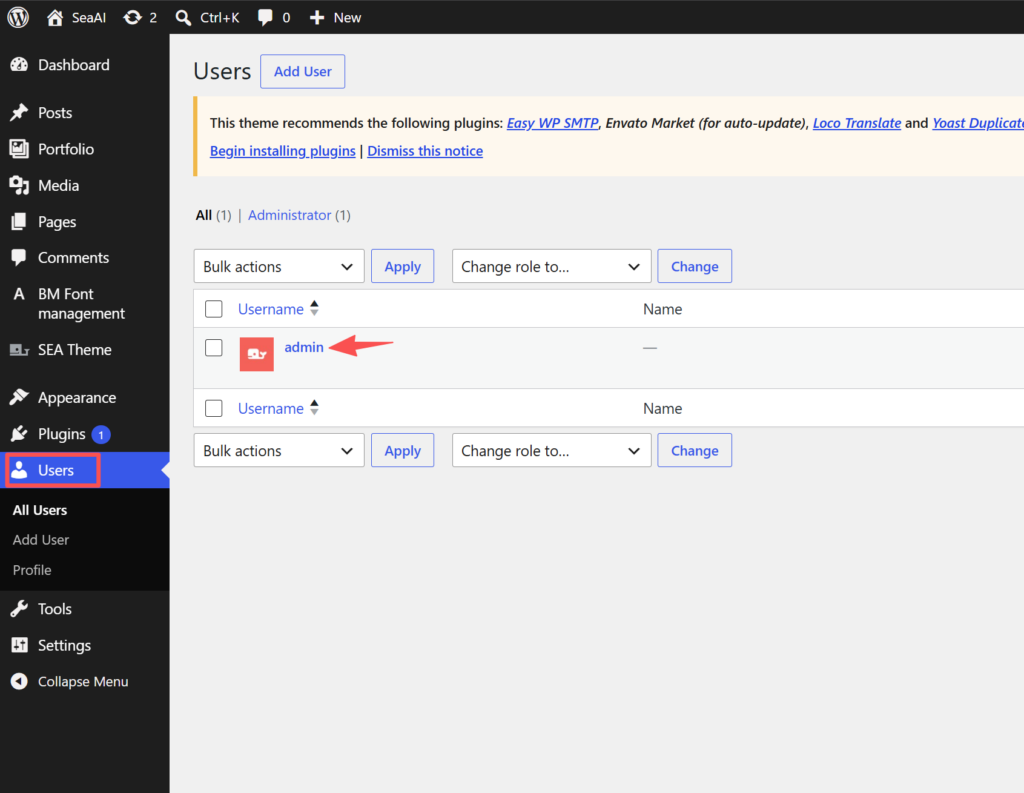
Scroll to the bottom of the user profile page until you find the BM AI Credits section.Enter:
- A positive number to add credits.
- A negative number to deduct credits.
Click Update Profile to save your changes.