
This guide explains how administrators can review subscription status, manage user credit balances, sync local subscription records with Stripe, and open the related Stripe subscription from the WordPress admin.
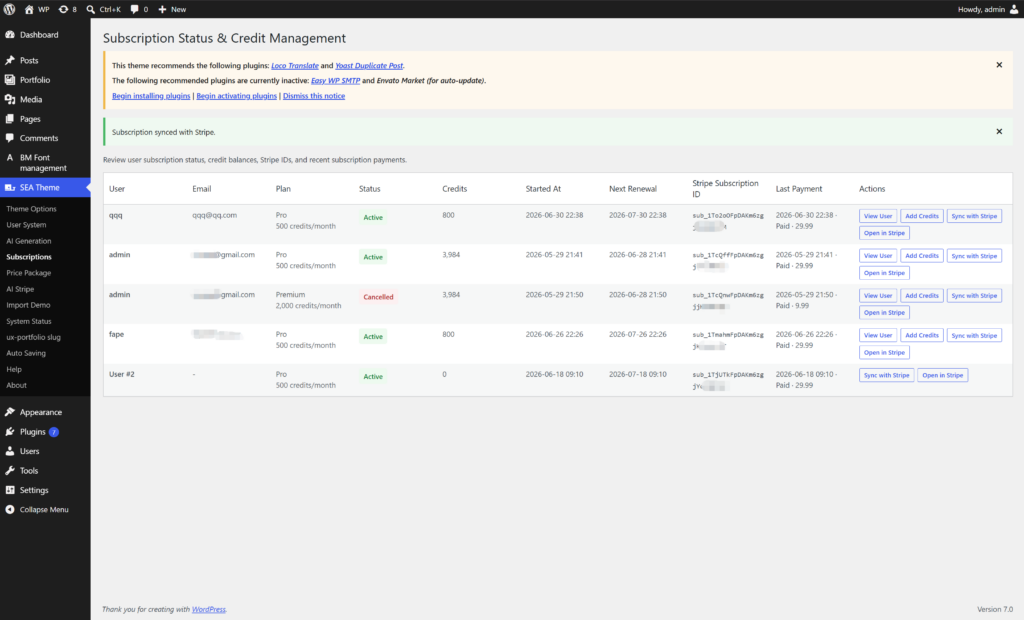
Subscription List Columns
| Column | Meaning |
|---|---|
| User | The WordPress user display name or login associated with the subscription. |
| The user’s WordPress account email address. | |
| Plan | The current local SeaAI subscription package. When available, the monthly credit allowance is shown below the plan name. |
| Status | The local subscription status, usually synced from Stripe. Common values include Active, Trialing, Past Due, Cancelled, Expired, and Paused. |
| Credits | The user’s current total SeaAI credit balance in WordPress. |
| Started At | The current subscription period start time. If that is unavailable, the local subscription creation time is shown. |
| Next Renewal | The current subscription period end time. For active subscriptions, this is the expected next renewal date. |
| Stripe Subscription ID | The Stripe subscription identifier, such as sub_xxx. This links the WordPress record to Stripe. |
| Last Payment | The latest local subscription order or invoice payment record for this subscription. |
| Actions | Operational shortcuts for viewing the user, adjusting credits, syncing from Stripe, and opening the subscription in Stripe. |
Available Actions
View User
Opens the WordPress user edit screen. Use this when you need to review account details, roles, profile settings, or other user metadata.
Add Credits
Opens the WordPress user edit screen and jumps directly to the BM AI Credits section. Credit changes are not made directly from the subscription list.
- Click
Add Creditsin the subscription row. - The browser opens the user’s WordPress profile edit page and scrolls to
BM AI Credits. - Enter a positive number to add credits.
- Optionally enter a reason or note for the adjustment.
- Save the user profile.
Sync with Stripe
Pulls the latest Stripe subscription data into the local WordPress subscription record. Use this when a subscription status, renewal date, customer ID, or plan metadata may have changed in Stripe.
The sync may update local fields such as status, current period start, current period end, Stripe customer ID, and package ID when package metadata is available.
Open in Stripe
Opens the subscription in the Stripe Dashboard. The link automatically uses the Stripe test dashboard when the SeaAI Stripe settings are in test mode.
Recommended Admin Workflow
- Open
SeaAI > Subscriptions. - Find the user by name, email, plan, or Stripe subscription ID.
- Check the subscription status and next renewal date.
- If the record looks stale, click
Sync with Stripe. - If the user needs a manual credit correction, click
Add Creditsand make the adjustment in the user profile. - If payment, cancellation, invoice, refund, or card details need review, click
Open in Stripe.
Responsibility Split: Stripe vs WordPress
| System | Responsible For |
|---|---|
| Stripe | Payments, renewals, cancellations, failed payments, refunds, invoices, credit cards, taxes, billing cycle, and subscription billing state. |
| WordPress / SeaAI | User access, displayed plan, credit balance, credit grants, credit consumption, generation history, local subscription cache, webhook handling, and user-facing account display. |
Common Scenarios
A customer paid but credits are missing
- Open
Subscriptions. - Find the customer row.
- Click
Sync with Stripe. - Check
Last PaymentandCredits. - If Stripe confirms payment but credits still need correction, click
Add Creditsand adjust the balance inBM AI Credits.
A subscription shows Past Due
- Click
Open in Stripe. - Review the invoice and payment failure reason in Stripe.
- Ask the customer to update payment details through Stripe billing tools if needed.
- After the issue is resolved, return to WordPress and click
Sync with Stripe.
An admin needs to give bonus credits
- Click
Add Credits. - In
BM AI Credits, enter the bonus amount as a positive number. - Add a clear note, for example
Support bonus for delayed renewal. - Save the user profile.
A customer asks for a refund or cancellation
Do not handle refunds directly from WordPress. Open the subscription in Stripe and complete billing operations there. After Stripe is updated, return to WordPress and click Sync with Stripe.
Notes and Limitations
- The subscription list is an operational management view, not a Stripe Dashboard replacement.
- Manual credit adjustments do not affect Stripe invoices or subscription pricing.
- Stripe sync requires valid Stripe API credentials in
AI Stripesettings. - Webhook configuration should remain active so renewal payments and cancellations can update WordPress automatically.
- If a Stripe subscription has no local matching record, review the checkout flow, webhook delivery, and local order records.