
Open the Pice Packages
In WordPress Admin, go to SEA Theme in the left sidebar, then click Price Packages.
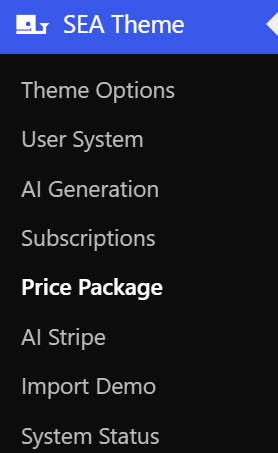
This opens the pirce package settings page for the AI credit subscription system.
Overview
The page controls whether subscription packages are available and how monthly Stripe subscription packages appear on the frontend pricing page.
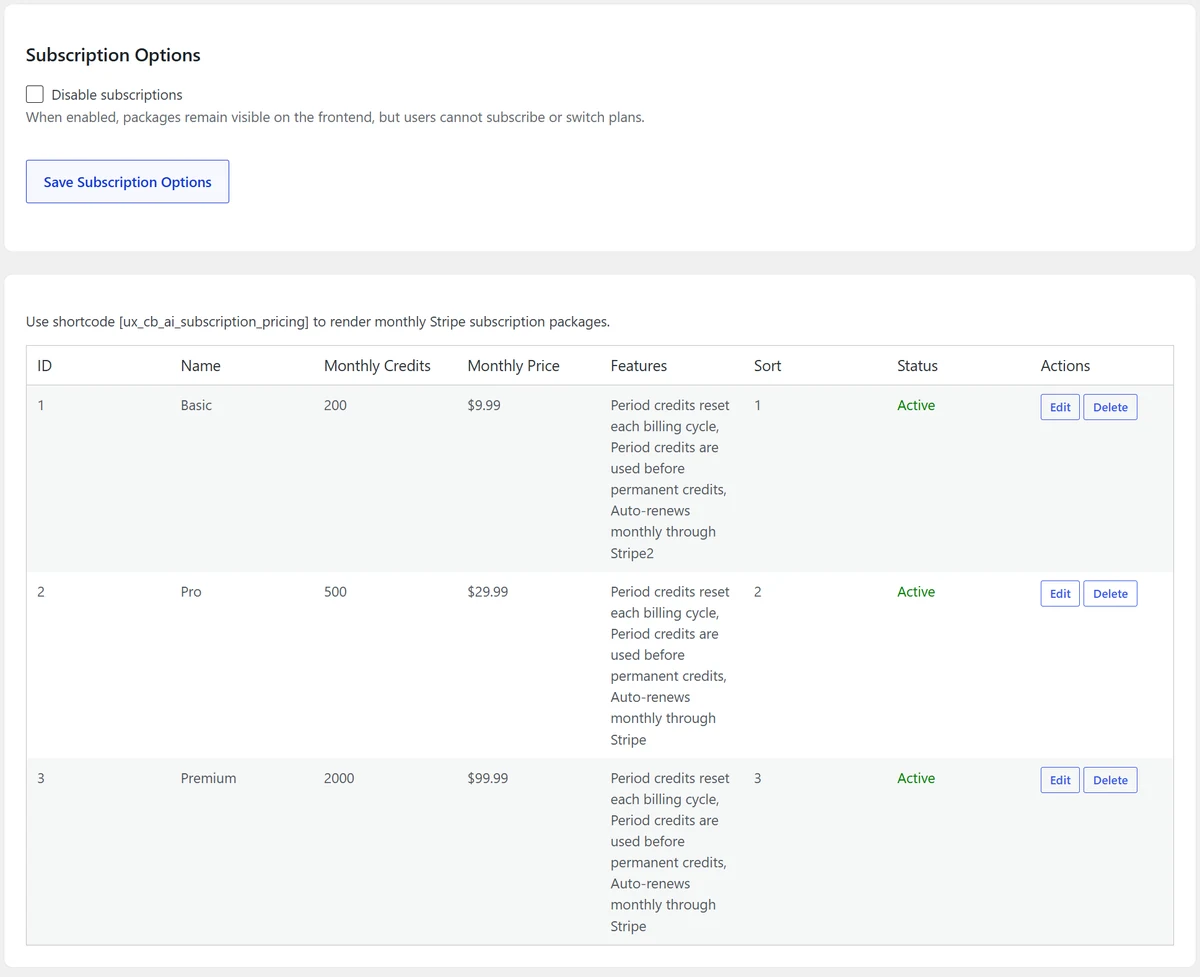
Disable Subscriptions
Enable Disable subscriptions when you need to temporarily stop users from subscribing or switching plans.
When this option is enabled, packages can remain visible on the frontend, but users cannot subscribe to a new plan or switch between plans.

Save Subscription Options
After changing the subscription availability option, click Save Subscription Options.
Refresh the page after saving to confirm that the checkbox state was saved correctly.

Subscription Pricing Shortcode
Use this shortcode on a WordPress page to display the monthly subscription pricing packages:
[ux_cb_ai_subscription_pricing]The shortcode renders the active packages from the package table.

Subscription Package List
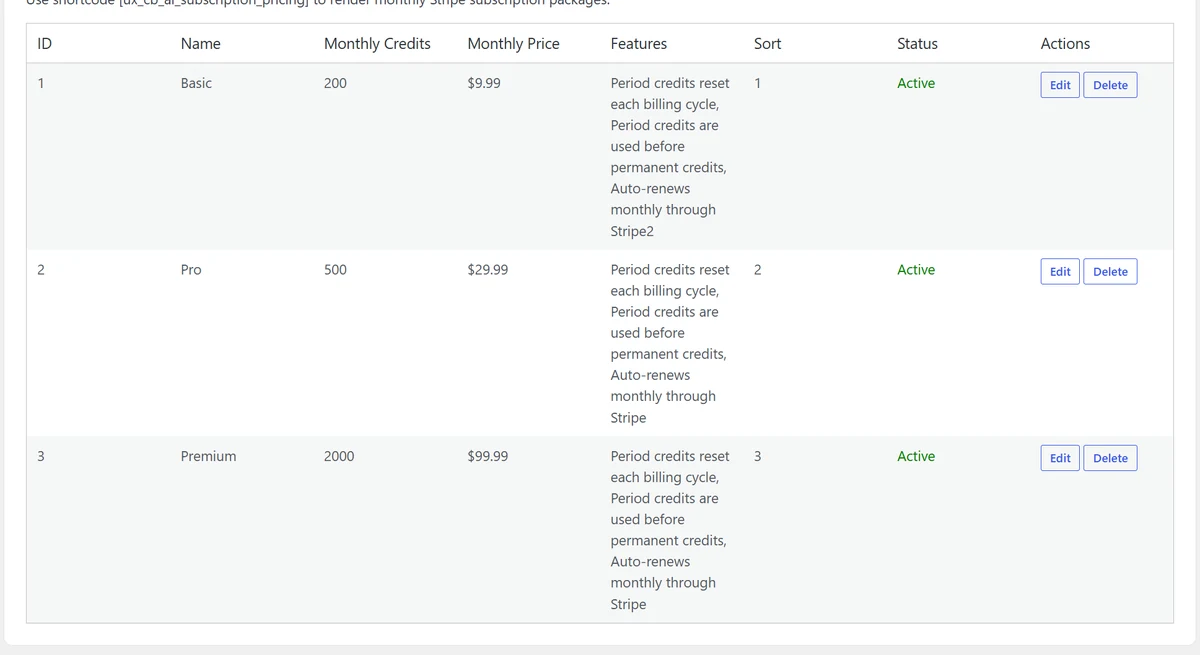
The package list shows every configured subscription package. Each row represents one plan that can appear on the frontend pricing page.
Package Table Columns
The table columns summarize the important package settings:
- ID: the internal package ID.
- Name: the package name shown to users.
- Monthly Credits: the credits added each billing cycle.
- Monthly Price: the recurring monthly price.
- Features: the feature list displayed under the package.
- Sort: the display order.
- Status: whether the package is active.
- Actions: edit or delete the package.

Edit or Delete Packages
Use Edit to change an existing package. Use Delete only when the package should be removed from the configuration.
Before deleting a package, confirm that it is not needed by active subscription workflows.
Edit Subscription Package
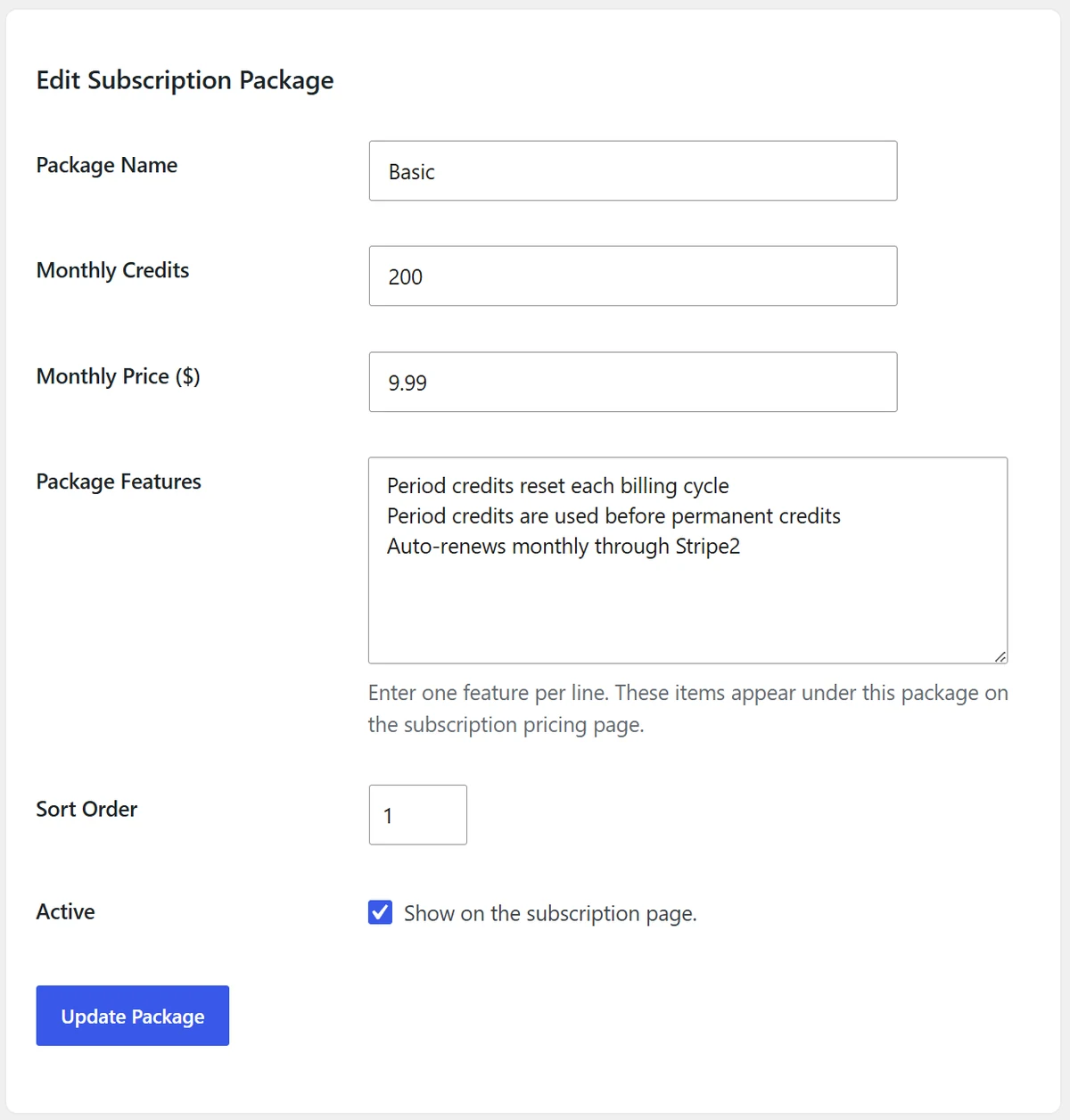
Clicking Edit opens the package editing form. This form controls the package name, monthly credits, price, feature text, sort order, and active status.
Package Name
Enter the package name shown on the frontend subscription pricing page. Use a short name that users can scan easily, such as Basic, Pro, or Premium.

Monthly Credits
Enter the number of credits users receive for this subscription package each billing cycle.
These credits should match the value promised on your pricing page.

Monthly Price
Enter the monthly subscription price in US dollars. This value should match the related Stripe subscription price.
Before publishing the plan, confirm that the amount is correct in both WordPress and Stripe.

Package Features
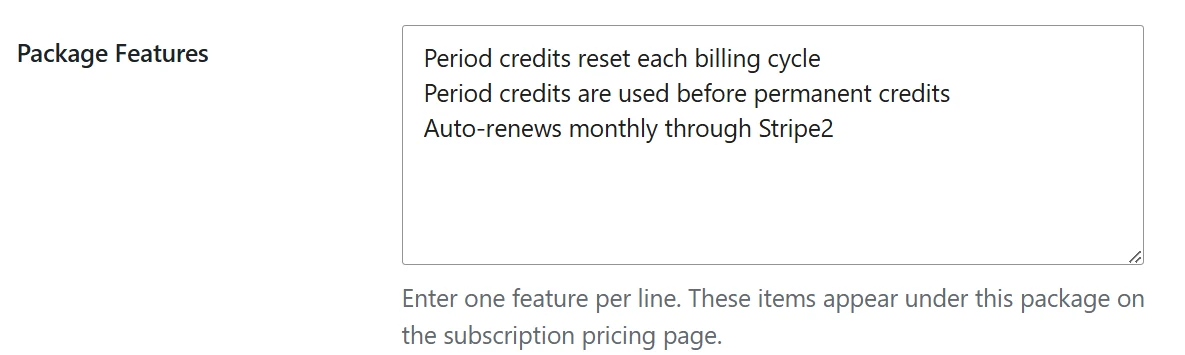
Enter one feature per line. These lines appear under the package on the subscription pricing page.
Use this field to explain what the user receives, such as monthly credit resets, credit usage rules, or auto-renewal details.
Sort Order
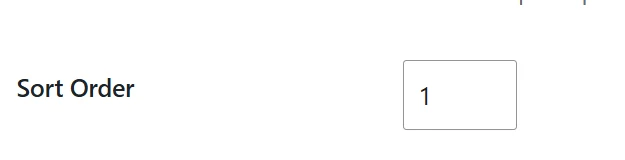
Use Sort Order to control the package display order. Lower numbers appear before higher numbers.
For example, use 1 for Basic, 2 for Pro, and 3 for Premium.
Active
Enable Active to show the package on the subscription page. Disable it when a package should be hidden without deleting it.

Update Package
After editing the package fields, click Update Package to save the changes.
Return to the package list and check the row values to confirm that the package was updated correctly.

Frontend Check
After saving the package, open the frontend page that contains the shortcode and confirm that the package name, price, credits, features, and active status display correctly.