
This guide explains how to install and activate SeaTryon, the AI virtual try-on plugin for WooCommerce. You can upload the SeaTryon release ZIP from the WordPress dashboard or install the plugin manually via FTP/SFTP when dashboard uploads are unavailable.
Before you install SeaTryon
Download the latest SeaTryon release package, extract the files, and find sea-tryon.zip in the Installable-file directory.. Do not extract the ZIP when using the WordPress dashboard method. Make sure WooCommerce is already installed and activated on your WordPress website.
Method 1: Install the SeaTryon ZIP from the WordPress dashboard
Video Guide:
The WordPress dashboard is the quickest installation method and is recommended when your hosting environment allows plugin uploads.
- Sign in to your WordPress admin dashboard.
- Go to Plugins → Add Plugin.
- Select Upload Plugin at the top of the page.
- Click Choose File and select
sea-tryon.zipfrom your computer. - Click Install Now and wait for WordPress to finish uploading and installing the plugin.
- When the installation completes, click Activate Plugin.
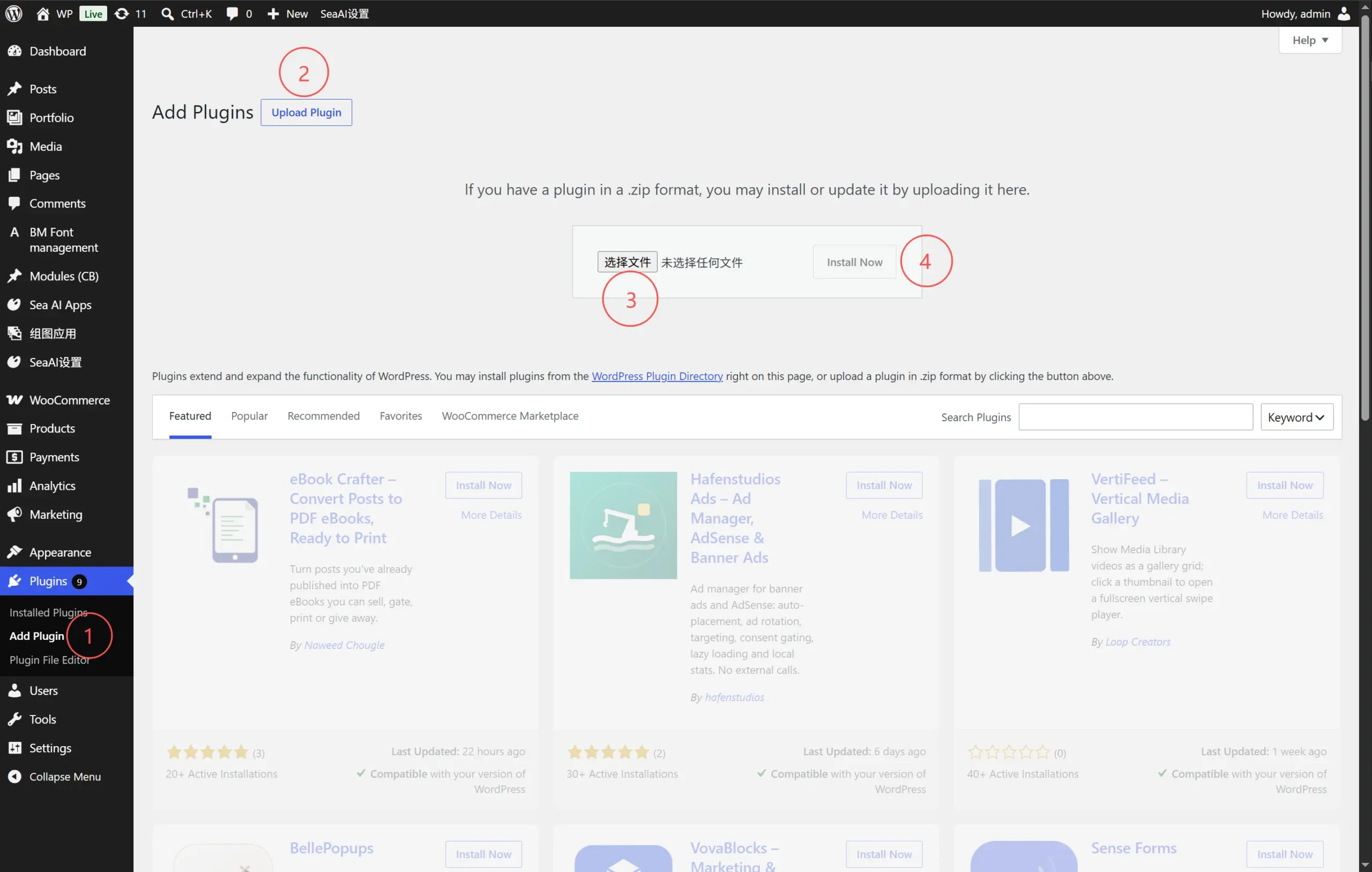
sea-tryon.zip, and click Install Now.Method 2: Install SeaTryon via FTP or SFTP
Some WordPress hosting configurations disable plugin installation from the dashboard or enforce an upload-size limit. In that case, you can manually install SeaTryon using an FTP client, SFTP client, or your hosting provider’s file manager.
- Extract
sea-tryon.zipon your computer. - Confirm that the extracted plugin directory is named
sea-tryon. - Connect to your WordPress server using FTP or SFTP. SFTP is preferred when your host supports it.
- Open the
/wp-content/plugins/directory in your WordPress installation. - Upload the complete
sea-tryonfolder to/wp-content/plugins/. The final path should be/wp-content/plugins/sea-tryon/. - Return to your WordPress dashboard and go to Plugins → Installed Plugins.
- Find SeaTryon in the plugin list and click Activate.
Confirm that SeaTryon is active
After activation, confirm that SeaTryon appears as active on the Installed Plugins screen. You can then continue to the SeaTryon settings and connect the AI service before enabling virtual try-on or product placement for WooCommerce products.
Common installation issues
- Upload is not available: use the FTP/SFTP installation method above or contact your hosting provider.
- The ZIP exceeds the upload limit: ask your host to increase the WordPress upload limit, or upload the extracted plugin folder via SFTP.
- WordPress reports that the plugin file does not exist: verify that the folder is exactly
/wp-content/plugins/sea-tryon/and that the plugin files are not inside an additional nested folder. - SeaTryon cannot be activated: confirm that WooCommerce is installed and active, then review any error message shown by WordPress.